Native Mac experience
Built for macOS 13+ with a familiar window, sidebar, keyboard shortcuts, and App Sandbox security.

Native macOS SSH client
A fast, focused SSH terminal for Mac — with SFTP browsing, remote monitoring, smart command completion, and data that never leaves your machine.
Connect, work in the terminal, browse files, and run commands — all in one native Mac app.
From saved connections to remote file ops — every screen is designed for daily server work.
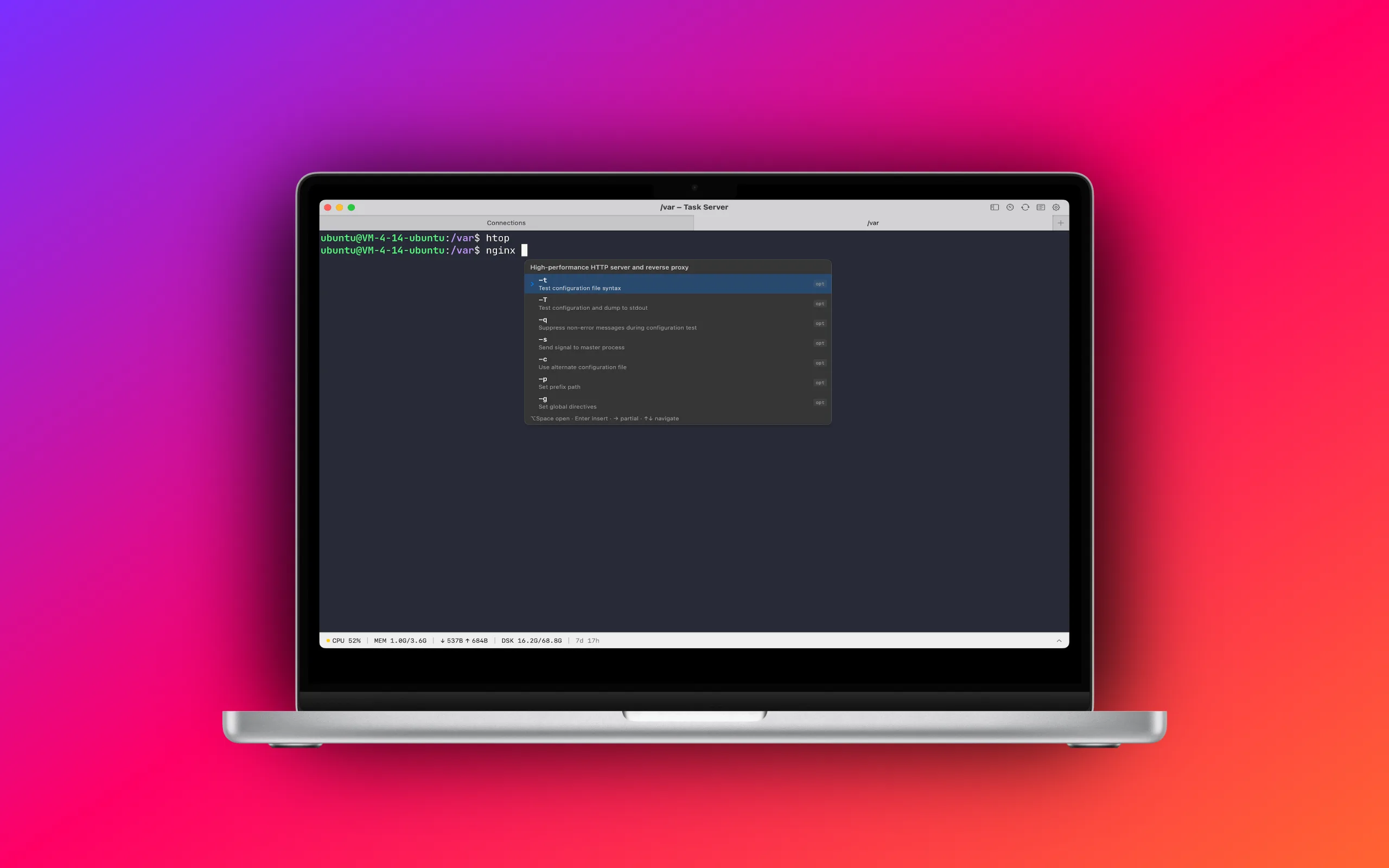
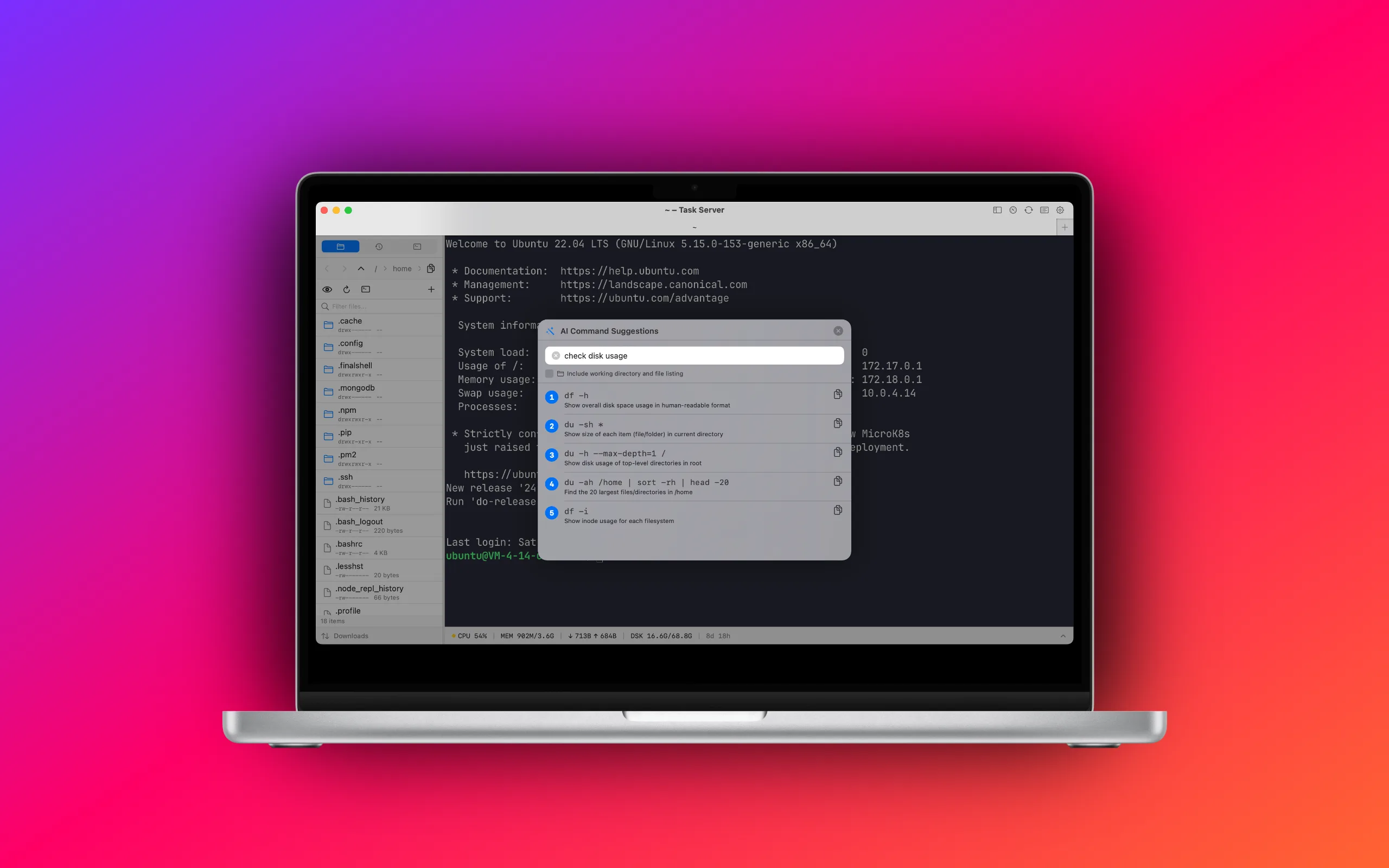
Click the screenshot to view full size
TapShell SSH keeps the essentials sharp — without turning your Mac into another cloud service.
Built for macOS 13+ with a familiar window, sidebar, keyboard shortcuts, and App Sandbox security.
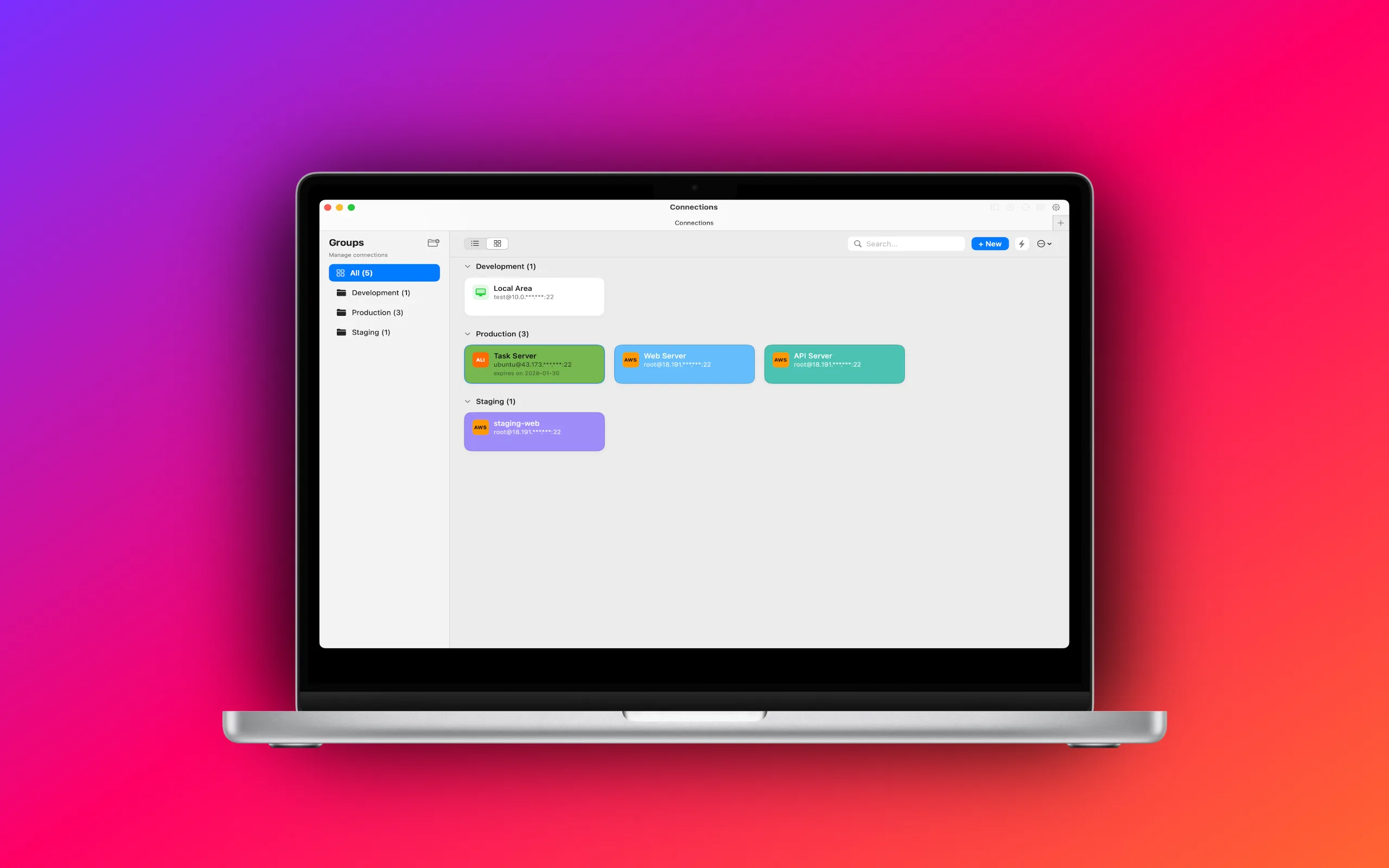
Organize servers into custom groups on the connection hub. Switch between card and list views, and tailor group colors plus card appearance to fit your setup.
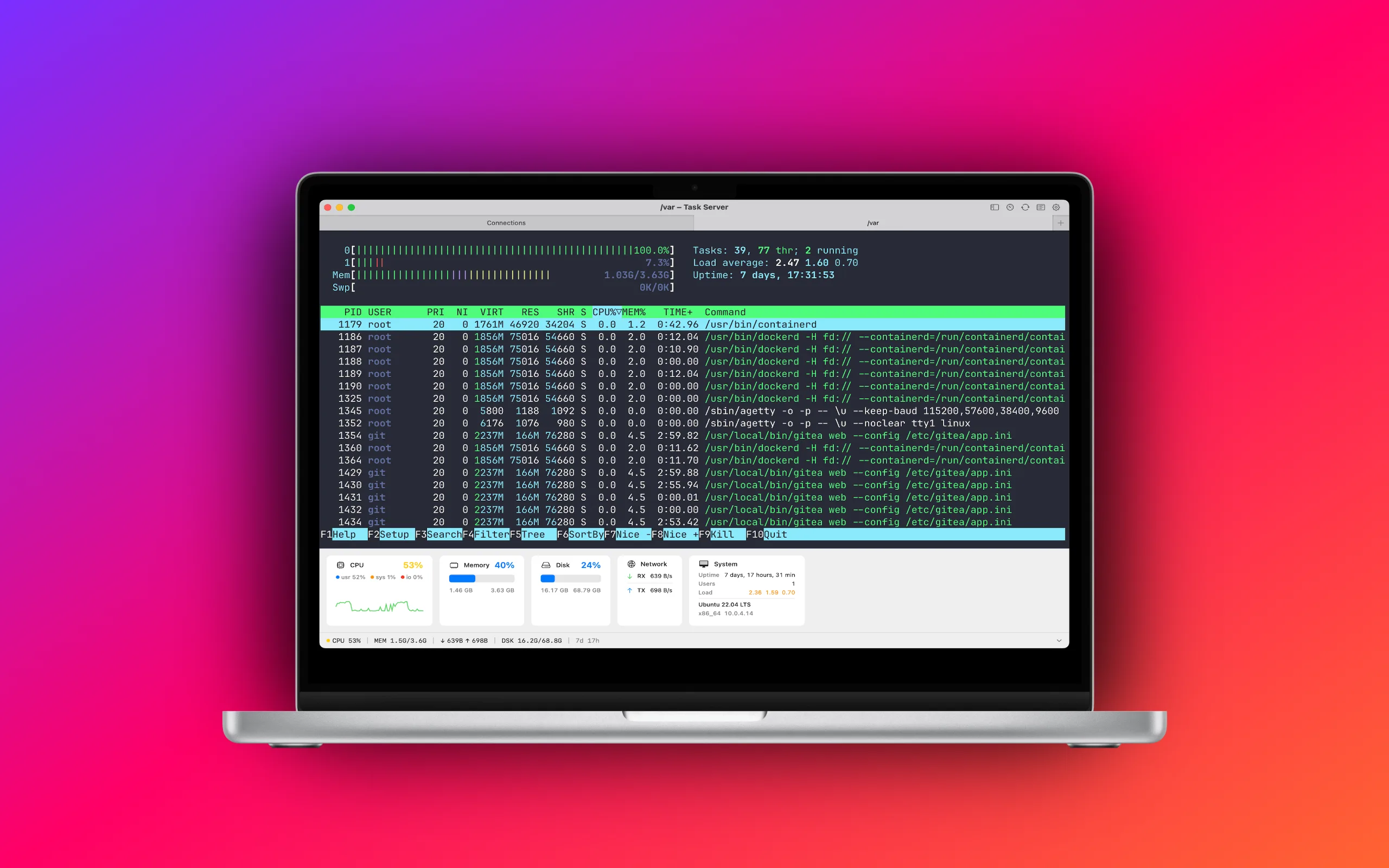
Powered by Ghostty for a fast, native terminal experience. Split panes, tabs, and light or dark mode — tuned for long SSH sessions.
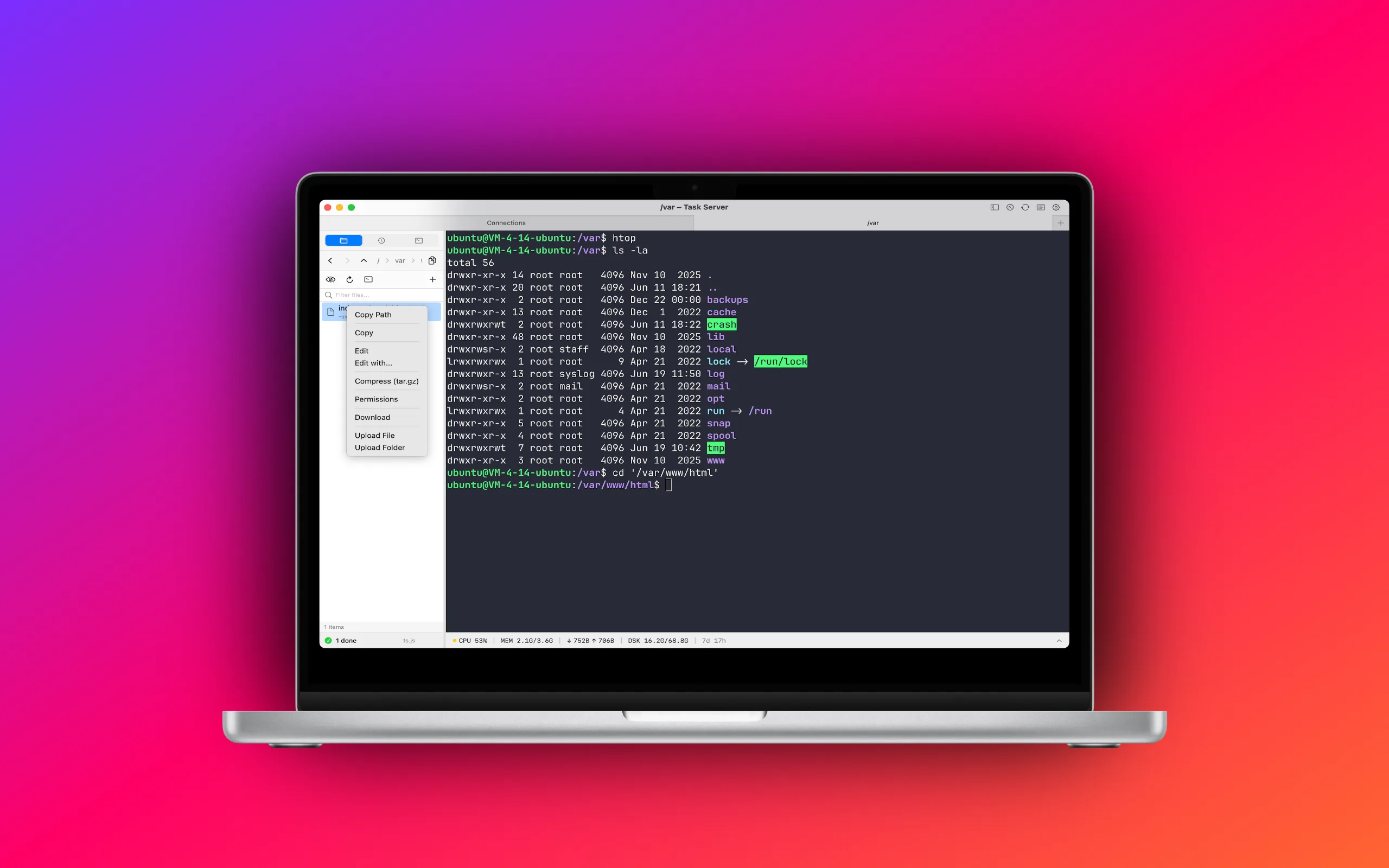
No separate FTP app. Browse, transfer, and manage remote files alongside your SSH session.
CPU, memory, disk, and process list — glance at server health without leaving the terminal.
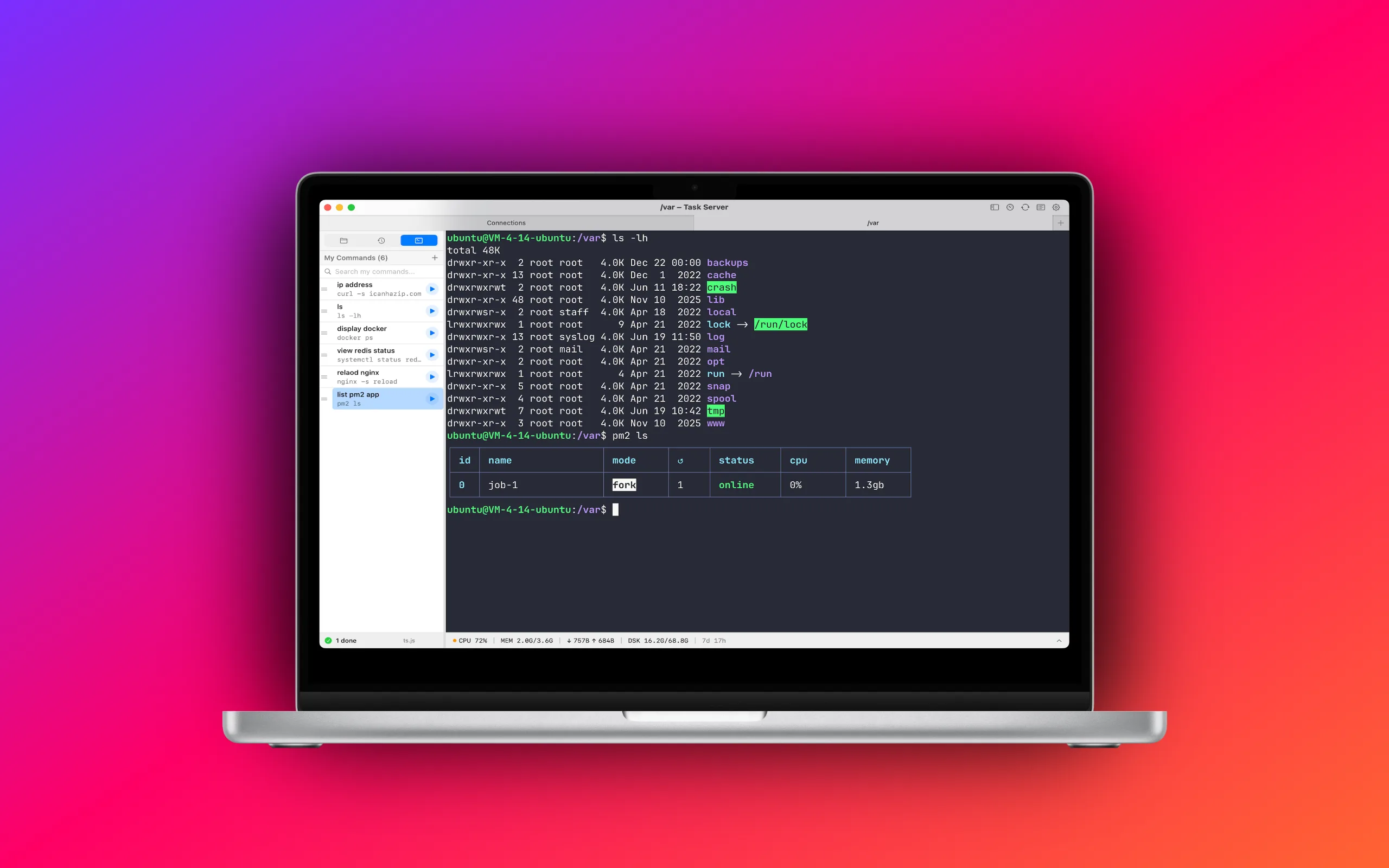
History, My Commands, and CLI-aware suggestions help you type less — open the panel with Option+Space.
Save your frequently used commands as favorites. Run them in one click from the terminal — no need to retype long commands every time.
Optional AI assist with your own API key. Context goes to your provider, not TapShell servers.
No TapShell account. No cloud backend. SSH traffic goes directly between your Mac and your servers.
Start with a 7-day free trial. Cancel anytime in System Settings → Apple ID → Subscriptions.
Download TapShell SSH from the Mac App Store. For purchase, refund, or billing questions, use the support link on the product page.
View on the Mac App Store →Questions, bug reports, or feature requests? Send us an email and we will get back to you.
leeb05804@gmail.com →TapShell SSH does not collect or upload your personal data to our servers. Read the full policy in English or Chinese.
View Privacy Policy →No. Connection profiles and credentials are stored locally on your Mac. SSH and SFTP traffic goes directly between your Mac and the servers you configure. TapShell SSH does not operate a cloud backend.
On the navigation page, double click a connection card or list entry to open a session. Use + New to add a server, or Quick Connect for a one-off session without saving. TapShell SSH supports password and private-key authentication, connection groups, and split terminal panes.
When connected via SSH, open the file browser in the sidebar to browse remote directories, upload and download files, drag and drop local files, create folders, and edit remote files with an external editor.
AI command suggestions are optional. You provide your own API key and endpoint. When enabled, your question and optional terminal context are sent directly to the third-party API you configure—not to TapShell SSH servers.
TapShell SSH requires macOS 13 (ventura) or later.
TapShell SSH Pro is a monthly subscription with a 7-day free trial. After the trial, your Apple ID is billed each month unless you cancel in System Settings → Apple ID → Subscriptions. Pricing is shown in the Mac App Store.
App settings and encrypted secrets are stored locally (UserDefaults and ~/.config/tapshell/). Uninstalling the app or deleting its data removes it from your device.